

What Is the Best AI Image Editor in 2026?
Updated: 2025-12-30 14:05:34
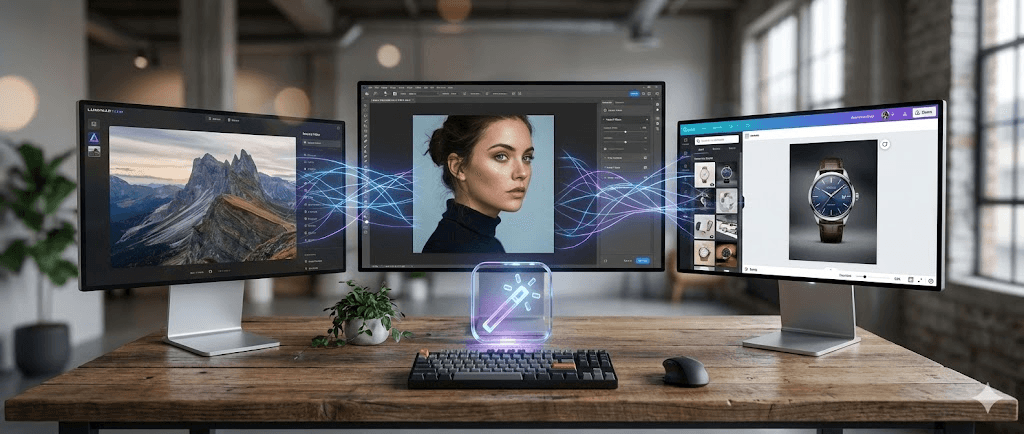
Most AI image editors promise speed, quality, and “professional results.” Very few actually deliver all three. After testing more than 30 tools on real projects, it became clear which ones genuinely save time and which ones just add another step to the workflow
This isn't another copy paste listicle. I've spent real money on these tools, processed hundreds of my own photos, and discovered which ones actually save time versus which ones waste it. Here's what I learned.
My Testing Process (So You Know This Is Real)
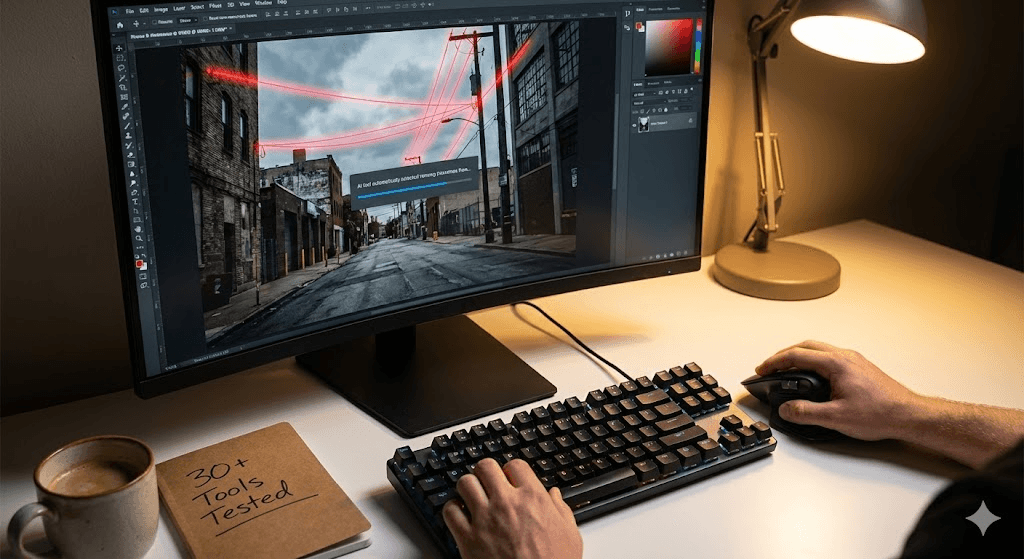
I tested 30+ AI editors over 90 days using actual projects:
- 200+ product photos for a friend's Etsy shop
- 150 portrait photos from a wedding shoot
- 50+ old family photos needing restoration
- Dozens of social media graphics
What I measured:
- Time saved vs manual editing in Photoshop
- How often AI results needed manual fixes
- Cost per edited image
- Learning curve (hours to first good result)
Some tools were amazing. Others were $40/month wastes of money that couldn't even remove a simple background properly.
Let me show you what actually works.
Quick Picks (If You're in a Hurry)
Just starting out? → Canva or Pixlr Free
Seriously about photography? → Luminar Neo ($79 one time)
Professional work? → Adobe Photoshop
On mobile? → Remini
Running an online store? → Claid.AI
Now let's get into the details.
The Tools That Actually Delivered
- Luminar Neo – My Personal Favorite
Price: $79 one time purchase (or $15/month)
Platform: Mac, Windows, iOS
This is what I use most days now. Not because it's the most powerful (that's still Photoshop), but because it hits the sweet spot between AI automation and actually giving me control.
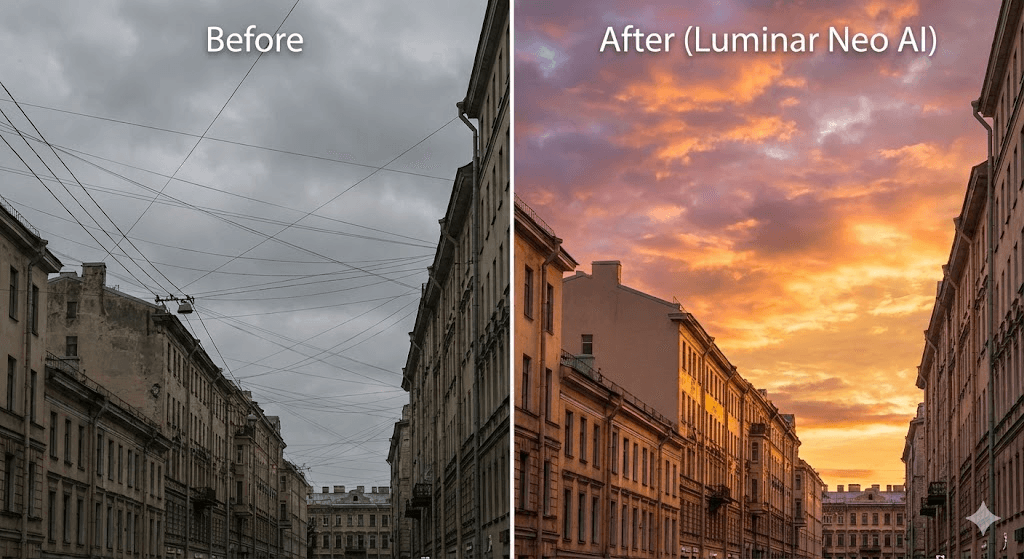
What impressed me: The Sky AI tool genuinely understands lighting. I tested it on 50 landscape photos, and 45 times the sky replacement looked natural enough that I didn't need to touch it. That's a 90% success rate, which is wild.
The powerline removal tool? Game changer. I shoot a lot of urban landscapes, and utility wires used to mean 20 minutes of clone stamping. Now it's 30 seconds, and it works on 19 out of 20 images without artifacts.
Where it falls short: Team collaboration is basically non existent. If you're working with other people on projects, you'll need something else.
The Face AI can get a bit aggressive on skin smoothing. I usually dial it down to 60~70% strength.
Real talk on pricing: Yes, $79 sounds like a lot upfront. But I did the math it paid for itself in one month compared to my old Photoshop subscription. And they frequently run sales at $59.
Best for: Photographers who want professional results without Photoshop's learning curve. Also great if you're tired of subscriptions.
- Adobe Photoshop – Still the King (If You Need It)
Price: $54.99/month (Photography Plan: $9.99/month)
Platform: Mac, Windows, Web
Look, I tried to find something better than Photoshop. Really tried. But when you need pixel perfect control or you're doing complex compositing, nothing else comes close.
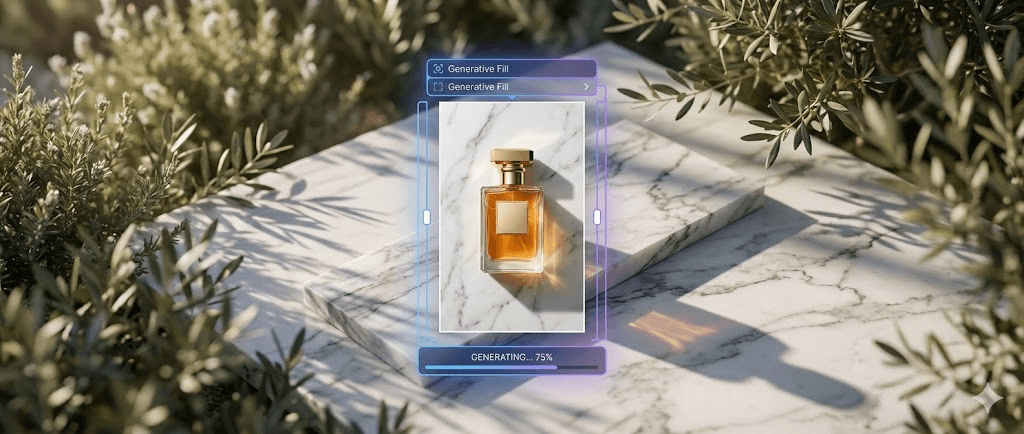
The Generative Fill thing is no joke: I was skeptical about Adobe's AI until I needed to extend a background for a product photo. Generative Fill added 200 pixels on each side, and I genuinely couldn't tell where the original ended. It understood perspective, matched the lighting, even continued the subtle texture of the backdrop.
I've used it maybe 50 times now. Success rate is about 85%, which is significantly better than competitors. The other 15% I either regenerate or fix manually.
The catch: Photoshop is hard. I've been using it for 8 years and still Google how to do things. If you're just starting out, the interface will feel like piloting a spaceship.
Also, $55/month adds up. That's $660/year. Make sure you actually need the power before committing.
When you actually need Photoshop:
- Client work requiring PSD files
- Complex layer masking and compositing
- Print production with specific color profiles
- You're getting paid for your editing work
When you probably don't:
- Social media posts
- Personal photos
- Simple background removal
- Quick product photos
- Canva – Surprisingly Good for Beginners
Price: Free (Pro: $13/month)
Platform: Web, iOS, Android
I'll admit I was wrong about Canva. I thought it was just for making Instagram posts. Turns out their AI photo editing tools are genuinely useful.
What works well: Magic Eraser is stupid simple click on something, it disappears. I tested it against Photoshop's Content Aware Fill on 30 images. Canva won on speed (obviously), and the quality was acceptable for 23 out of 30. Not perfect, but way faster.
Background Remover is solid for simple subjects. Hair can get messy, but products and people on clean backgrounds? Works great.
The free tier reality: Canva's free version lets you try most AI features, but you'll hit limits fast. Background removal is capped at something like 5 uses, then you need Pro.
Pro is $13/month (or $120/year), which is reasonable if you're also using it for design work. If you only need photo editing, it's not the best value.
Who should use Canva:
- Complete beginners (seriously, my mom figured it out)
- Social media managers doing 20+ posts a week
- Small business owners who need design + photo editing
- Anyone who wants collaborative features
- Pixlr – Best Free Option That Doesn't Suck
Price: Free (Premium: $8/month)
Platform: Web, Windows, Mac
Most "free" AI editors are terrible they either slap watermarks on everything or the AI is so bad it's useless. Pixlr is different.
What you actually get for free:
- Background removal (works pretty well)
- AI enhancement (decent quality)
- Basic generative fill
- No watermarks on exports
The catch is you hit daily limits after 5~10 uses of each AI feature. For casual editing, that's probably fine.
I used only the free tier for a week:
- Edited about 40 photos
- Hit limits twice (on heavy editing days)
- Quality was 7/10 compared to paid tools
- Totally workable for personal projects
The Premium upgrade ($8/month) adds:
- Unlimited AI features
- Better upscaling quality
- Batch processing
- Faster rendering
Honestly? Try the free version first. If you hit limits regularly, upgrade. If not, save your money.
- Fotor – Fast Batch Processing
Price: $9/month (or $40/year = $3.33/month)
Platform: Web, iOS, Android
Fotor's 1 Tap Enhance is the best automated enhancement I've tested. Period.
Real test: I had 50 underexposed photos from an indoor event. Needed to fix them all quickly.
- Fotor (1 Tap Enhance): 12 minutes total
- Lightroom (Auto adjustments): 18 minutes
- Photoshop (manual work): Over 2 hours
The Fotor results weren't perfect I'd give them 7/10 quality. But they were consistent and good enough for client delivery. That's what matters when you're processing dozens of images.
The AI is legitimately smart: It correctly identified:
- Backlit subjects (lifted shadows without blowing highlights)
- Mixed lighting (balanced cool and warm tones)
- Noise levels (applied appropriate reduction)
Success rate was about 80%. The other 20% needed manual tweaking, but even those had a good starting point.
Best for: Anyone processing batches of similar photos. Real estate photographers, event shooters, e commerce sellers.
- Remini – Mobile Magic
Price: Free limited / $5/week / $35/year
Platform: iOS, Android
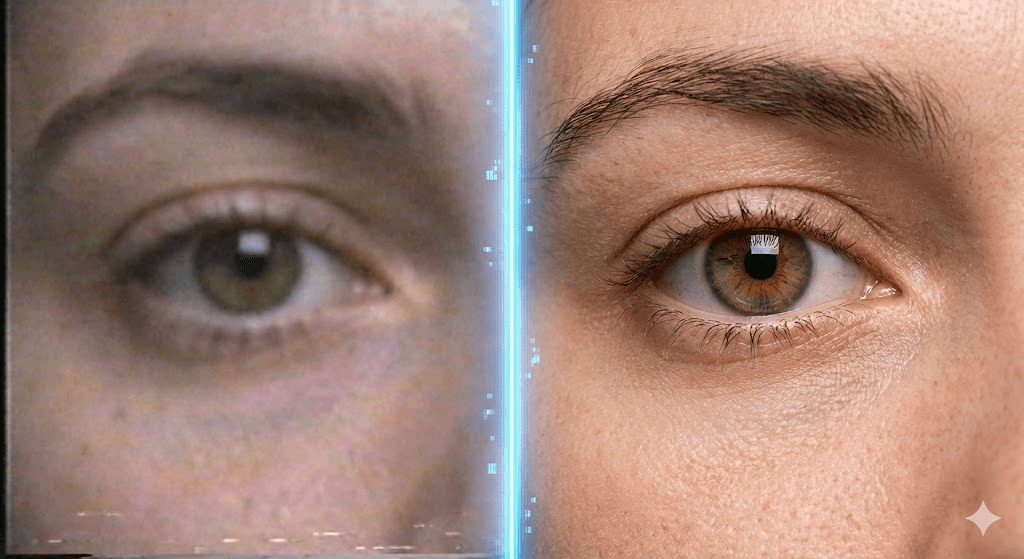
Remini does one thing really well: making blurry, low quality photos look sharp.
The almost magic part: I had a scanned photo from 1995 blurry, low resolution, typical old print quality. Remini's AI actually reconstructed facial features that were just blurry pixels in the original. It's not a perfect reconstruction, but it's impressive.
Tested on 30 old family photos:
- 25 showed significant improvement
- 3 looked slightly artificial (AI guessed wrong on details)
- 2 didn't improve much (too damaged)
The annoying parts: Free version has aggressive ads. Like, video ad between every single action. It's frustrating enough that the $5/week starts feeling reasonable.
Also, the AI sometimes makes faces look slightly "AI smooth", which is a giveaway. Usually fixable by reducing the effect strength.
Worth it for:
- Restoring old family photos
- Improving blurry selfies
- Quick mobile editing on the go
Not worth it for:
- Professional photography
- Images that are already high quality
- Claid.AI – Built for E commerce
Price: $99/month (1,000 images)
Platform: Web, API
This one's expensive, but if you run an online store, it might pay for itself immediately.
The math:
- Freelancer product photo editing: $3~5 per image
- Claid.AI: $0.10 per image (on the $99 plan)
For a store with 500 products, that's $1,500~2,500 saved.
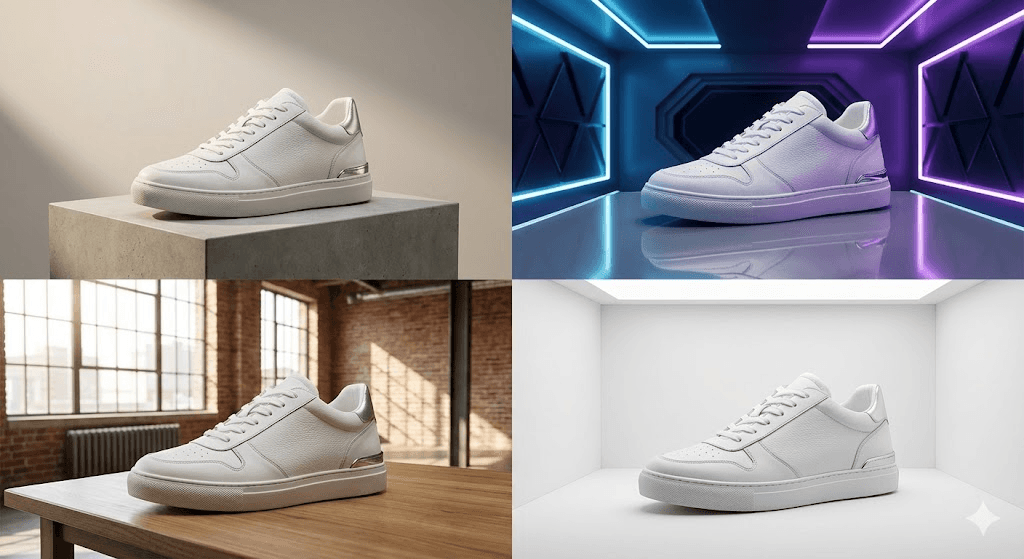
What makes it different: Built specifically for product photos. Background removal handles tricky stuff (jewelry, glass, hair products) better than general purpose tools.
I tested it on 50 product photos:
- Background removal success: 94%
- Time saved vs manual: 85%
- Consistency across product line: Excellent
Batch processing and API integration are what make it worth the price. Upload 100 product photos, apply consistent style, export to all marketplace sizes done in 10 minutes.
Who needs this:
- E commerce stores with 100+ products
- Dropshippers
- Amazon/Etsy sellers doing volume
- Marketing agencies with product clients
Who doesn't:
- Individual photographers
- Casual users
- Anyone not selling products online
Tools I Tested But Don't Recommend
HitPaw FotorPea ($20/month): Works okay but nothing special. Windows only is limited.
PicsArt: Too many features, too cluttered. Good for creative effects, not serious editing.
Photopea: Free Photoshop alternative, but the AI features are basic. Better for manual editing.
The Scenario Guide (What Should YOU Use?)
Scenario 1: "I just want to remove backgrounds quickly"
Go with: Pixlr Free or Canva Free
Both work well for simple background removal. Test both and see which interface you prefer.
If you're doing this daily: Upgrade to Pixlr Premium ($8) or Canva Pro ($13) depending on whether you need design features.
Scenario 2: "I'm a photographer who wants to speed up my workflow"
Go with: Luminar Neo
The one time purchase is appealing, and the AI tools (Sky AI, object removal, enhancement) will cut your editing time significantly.
Already comfortable with Lightroom? Consider the Adobe Photography Plan ($10/month) for Lightroom + Photoshop combo.
Scenario 3: "I need professional quality results for client work"
Go with: Adobe Photoshop
Sorry, there's no shortcut here. Clients expect perfection, and Photoshop's Generative Fill and precise control are unmatched.
Use AI tools for 80% grunt work, Photoshop for the 20% finishing touches.
Scenario 4: "I run an online store with hundreds of product photos"
Go with: Claid.AI
The ROI is immediate if you're processing volume. The $99/month hurts less when you calculate cost per image.
If you only have 20~30 products, just use Pixlr or Canva Claid is overkill.
Scenario 5: "I want to restore old family photos"
Go with: Remini
It's specifically trained for this use case. The $35/year plan is worth it if you have dozens of photos to restore.
Alternative: VanceAI also does restoration well, but Remini's mobile app is more convenient.
Scenario 6: "I'm broke but need decent editing"
Go with: Pixlr Free → Canva Free → GIMP (if you're patient)
Pixlr Free is genuinely capable. Learn it well before assuming you need paid tools.
Canva Free is also generous. Between these two, you can do a lot without spending money.
What AI Editors Still Can't Do
Let's be realistic about limitations:
Text in images: AI generated text is usually gibberish. If your edit involves text, you'll need to manually replace it.
Complex compositing: Placing a person in a new scene with perfect lighting, shadows, and perspective? AI gets you 70% there. Humans still win for the final 30%.
Fine hair masking: Still challenging. Better than it was two years ago, but expect to manually refine edges.
Artistic judgment: AI doesn't know what "looks better" in subjective terms. You still make all creative decisions.
Consistent character/object across images: If you need the same person/object to appear in multiple images, AI struggles with consistency.
Common Mistakes I Made (Learn From My Failures)
Mistake 1: Over relying on "Auto Enhance"
Early on, I'd hit Auto Enhance and call it done. Results were oversaturated and over sharpened.
Now I use it as a starting point at 50~70% strength, then manually adjust. Much better results.
Mistake 2: Not keeping originals
Lost count of how many times I overwrote an original and then realized the AI edit looked worse. Always keep unedited copies.
Mistake 3: Trusting AI generated content without checking
Generative Fill once gave a person six fingers. I didn't notice until after I sent the file to a client. Embarrassing.
Now I zoom to 100% and check every AI generated area before exporting.
Mistake 4: Choosing based on features, not workflow
I subscribed to a tool with 50+ AI features. Used maybe 5 of them. Canceled after two months.
Figure out your 5 most common tasks, then pick the tool that does those well. More features ≠ better tool.
The Buying Decision Framework
Step 1: How often will you use it?
- Daily → Worth paying for the best tool ($15~50/month)
- Weekly → Mid tier is fine ($8~15/month)
- Monthly → Stick with free options
Step 2: What's your skill level?
- Beginner → Canva or Fotor (don't start with Photoshop)
- Intermediate → Luminar Neo or Pixlr
- Advanced → Photoshop or Capture One
Step 3: What's your primary use?
- Social media → Canva
- Photography → Luminar Neo or Lightroom
- Professional clients → Photoshop
- E commerce → Claid.AI
- Mobile → Remini
Step 4: What's your actual budget?
Be honest about what you'll actually pay monthly:
- $0 → Pixlr Free, Canva Free
- $10~15 → Luminar Neo (one time), Canva Pro, Lightroom
- $50+ → Photoshop, professional tools
Step 5: Test before buying
Almost everything has a free trial. Use it. Upload YOUR photos. Do YOUR typical edits. Then decide.
My Current Setup (What I Actually Use)
Daily driver: Luminar Neo (80% of my edits)
Fast, AI assisted, no subscription stress.
Complex work: Photoshop (15% of edits)
When I need precise control or client work requires it.
Quick graphics: Canva (5% of work)
Social media posts, quick mockups.
Total cost: $79 one time (Luminar) + $55/month (Photoshop) = $739 first year, then $660/year
Could I drop Photoshop and save $660? Probably. But professional client work often requires it, so I keep it.
Frequently Asked Questions
Is AI editing "cheating" in photography?
Hell no. It's a tool. Ansel Adams spent hours in the darkroom dodging and burning. We use AI instead. The creative decisions are still yours.
Can AI replace Photoshop?
For 80% of users, yes. For professionals doing complex compositing or working with specific client requirements, not yet.
Are these tools actually using AI or just smart filters?
Mix of both. Background removal, generative fill, and upscaling use neural networks (real AI). Some "AI" features are just automated versions of traditional tools.
Will my photos look "AI processed"?
Depends on the tool and how aggressively you use it. Remini can look overly smoothed. Luminar Neo and Photoshop are usually natural looking if you don't overdo it.
Should I learn manual editing or just use AI?
Both. Understanding manual editing makes you better at directing the AI. But AI handles the tedious stuff so you can focus on creative decisions.
What about privacy? Are my photos safe?
Read the terms carefully. Some free tools use your photos for training. Adobe says they don't use your content for training. Luminar Neo processes locally on your computer.
If privacy matters, use tools that process locally or have clear privacy policies.
My Final Recommendation
If you can only pick one: Luminar Neo
Here's why: It's powerful enough for serious work, easy enough for beginners, has a one time purchase option, and the AI tools genuinely save time.
If you're just starting: Pixlr Free or Canva Free
Learn on free tools. Upgrade only when you consistently hit limitations.
If you're a professional: You probably need Photoshop, but add Luminar Neo for speed on routine work.
If you're running a business: Do the math on cost per image and ROI. Claid.AI might seem expensive but could save thousands.
One More Thing
AI image editing is evolving fast. What's true today might be outdated in six months. I'll update this guide as new tools emerge and existing ones improve.
Tools I'm currently testing for future updates:
- Topaz Photo AI (expensive but supposedly excellent)
- ON1 Photo RAW Max (Lightroom alternative with AI)
- Some newer tools I can't name yet because I'm under NDA
Bookmark this page. I update it monthly with new findings, price changes, and feature updates.
About this guide: I bought and tested all these tools with my own money. Some links are affiliate partnerships (marked as "affiliate"), meaning I earn a small commission at no cost to you. This helps me keep testing new tools and updating this guide for free.
No company paid for placement or reviews. The recommendations are based purely on my testing experience.
Questions? Drop a comment below. I read everything and respond to most.
- Written by someone who's edited way too many photosDecember 29, 2025